There is a distinct satisfaction that comes from using a piece of technology that has been with you through thick and thin. Your laptop has been your partner for late-night study sessions, a portal to your favourite entertainment, and a reliable tool for everyday tasks. But as time marches on and software demands grow, even the most faithful companion can start to feel a bit sluggish. Before you even think about consigning it to a drawer or spending a significant sum on a new model, consider this: the heart of your machine might still be more than capable. It simply needs a little attention to shine again.
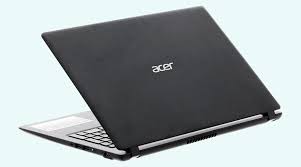
If you are the owner of an Acer Aspire A315-51, you are in a fortunate position. This particular model is something of a hidden gem for those who like to tinker and optimise. Its design offers a straightforward path to significant performance gains that can make it feel like a completely new computer. This guide will walk you through the journey of awakening the potential within your device, transforming it from a source of frustration back into a productivity powerhouse.
Diagnosing the Slowdown: Why Your Machine Feels Tired
The first step in any revival is understanding the root of the problem. When your computer begins to take an age to start up, applications stutter when you switch between them, or files take forever to save, the issue is rarely a failing processor. For a machine like the Acer Aspire A315-51, the two most common culprits are a lack of sufficient RAM and a traditional hard drive that has become a bottleneck .
Think of your computer’s processor as a highly skilled carpenter working at a bench. The RAM is the surface area of that bench—the space where he can lay out all his tools and materials for the current project. If the bench is too small, he’s constantly stopping to put one tool away to get another. That’s your computer slowing down when you have too many browser tabs or applications open. The storage drive, on the other hand, is the carpenter’s toolbox. A traditional hard drive is like a massive, disorganised toolbox where he has to rummage around every single time he needs something, which is why booting up and loading programs takes so long. Addressing these two areas will yield the most dramatic results.
The Single Most Impactful Change: Upgrading to an SSD
Without a doubt, the best thing you can do for your Acer Aspire A315-51 is to replace its main storage drive with a Solid-State Drive, or SSD. Unlike a traditional hard drive, which uses spinning magnetic platters and a moving needle to read data, an SSD has no moving parts. It’s essentially a set of high-speed memory chips. This difference is night and day.
Your Acer Aspire A315-51 offers excellent flexibility here. It comes equipped with a standard 2.5-inch bay for a hard drive, but this can be swapped out for a lightning-fast 2.5-inch SATA SSD . Once you’ve cloned your existing system over or performed a fresh installation of Windows on the new SSD, you will be amazed. Boot times that once took several minutes can shrink to under thirty seconds. Applications will launch almost instantly, and the whole system will feel snappy and responsive.
But there’s more. Beneath the access panel on the bottom of your laptop, you’ll also find an M.2 slot . This is a bonus feature that many users overlook. This slot allows you to add a second, separate drive. You could install a smaller, ultra-fast M.2 SATA SSD to use exclusively for your operating system and most-used programs, while repurposing the original 2.5-inch hard drive for storing your photos, music, and documents . This gives you the speed of a modern system with the storage capacity you’re used to.
Giving Your System Room to Breathe: A Memory Boost
Once you’ve freed your system from the shackles of a slow hard drive, the next step is to give it more workspace. The Acer Aspire A315-51 typically comes with 4GB of RAM soldered directly to the motherboard . While this is enough for basic, single-task use, modern web browsing with multiple tabs, video streaming, and office applications can quickly eat that up.
Fortunately, your laptop has a single SODIMM slot available for you to expand the memory . This is your opportunity to give your system a major boost. You can install a single 8GB or even a 16GB DDR4 module, which would combine with the built-in memory to give you a total of 12GB or a whopping 20GB of RAM . With that much memory, your computer will be able to handle a much heavier workload without breaking a sweat. Switching between a dozen browser tabs, a word processor, a spreadsheet, and a video call will become a seamless experience, as the system no longer has to constantly shuffle data in and out of the comparatively slow storage.
Conquering Common Quirks: From a Silent Pad to a Stable Screen
Of course, performance isn’t the only thing that can cause friction in your daily use. Sometimes, it’s the little things, like a feature that stops working the way it should. Many users have, at some point, encountered issues with the precision touchpad on their Acer Aspire A315-51 suddenly becoming unresponsive .
This can be incredibly frustrating, but it is almost always a software or driver issue, not a hardware failure. A common fix involves a quick trip to the Device Manager. You’ll want to expand the “Human Interface Devices” section, find the I2C HID device, and uninstall it . Upon restarting your computer, Windows will automatically detect the hardware and reinstall a fresh, correct driver. In other cases, the solution lies in reinstalling a specific piece of Acer software called “Quick Access,” which manages the touchpad’s advanced features and can be found on the official support site for your model .
Another occasional hiccup can be the computer freezing or displaying a black screen, particularly when under stress . While a failing drive can cause this, sometimes the fix is much simpler. If your system feels unstable, you can try resetting the BIOS to its default settings. By restarting your laptop and tapping the F2 key to enter the BIOS, you can then press F9 to load the default configuration, and F10 to save and exit . This can clear up any conflicting settings that might be causing instability. For more persistent software issues, using the built-in “Reset this PC” function in Windows can give you a clean slate without the need for complex recovery media .
Keeping Your Power Source Healthy
All these upgrades and fixes mean nothing if your laptop can’t last through a workday away from a power socket. The battery in your Acer Aspire A315-51 is a sophisticated component, and how you treat it directly impacts its lifespan . It’s a common myth that you should always keep a laptop plugged in. In fact, constantly running on AC power can actually shorten the battery’s effective life .
To get the most out of your battery, it’s beneficial to let it do its job. Try to run on battery power for a full cycle every now and then, discharging it and then recharging it fully. This process, sometimes called “conditioning” or “calibrating,” helps the battery maintain its ability to hold a full charge . Also, be mindful of your laptop’s environment. Extreme temperatures are the enemy of lithium-ion batteries; try to keep your device in a cool, dry place, ideally between 10°C and 30°C . Even simple habits, like unplugging a USB mouse or an external drive when you’re not using it, can stop that accessory from quietly draining precious power .
Your Acer Aspire A315-51 is more than just a piece of hardware; it’s a repository of your work, your memories, and your digital life. With a little understanding and a few targeted upgrades, you can ensure it remains a capable and reliable partner for years to come. The process of reviving it is not just about saving money; it’s about the quiet satisfaction of taking something good and making it, with your own effort, truly great again.